I earn commissions when you sign up or buy through the affiliate links on this page, at no extra cost to you.
Homelab · Guide · By Mohammed Almuhanna · Updated
Best NAS Drives for a Home Server (2026)
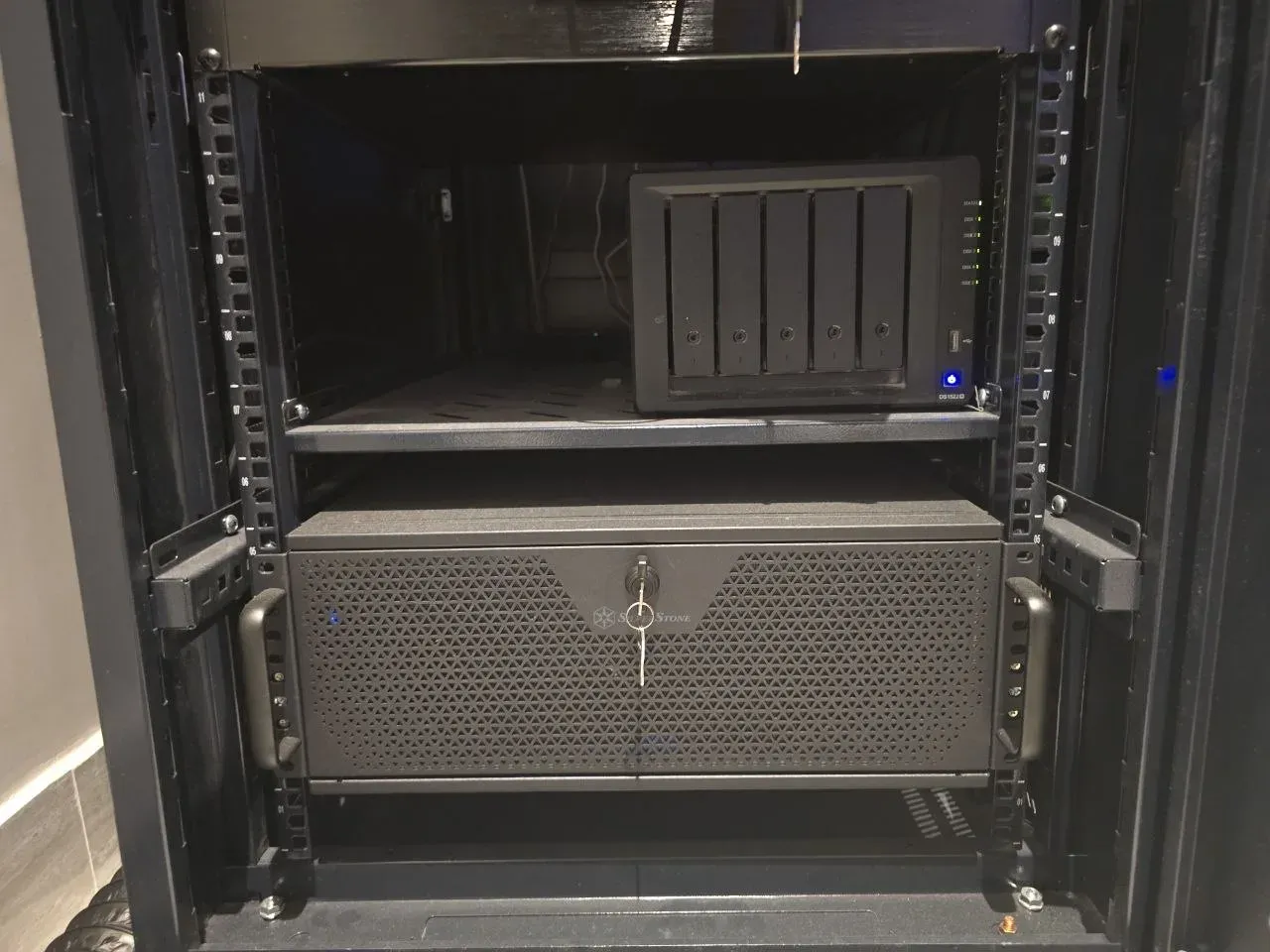
I run five Seagate IronWolf Pro 12 TB drives in my Synology, spinning around the clock, so this comes from the drives in my own rack and not a spec sheet I skimmed. Picking NAS drives is simpler than the marketing makes it look. You want a drive built to run 24/7 in a vibrating multi-bay box, you want CMR and not SMR, and you want a capacity that gives you headroom without making a rebuild take forever. This is how I choose, the drives I actually buy, and the one mistake that wrecks arrays.
The short version
Here is the answer without the reasoning. Buy a NAS-rated CMR drive in a matching set, size it at 8 TB to 16 TB depending on your bays, and keep a real offsite backup so you can run a sane RAID level. I run Seagate IronWolf Pro and I trust the brand. WD Red Plus or Red Pro is the safe pick if you are on Synology and want zero compatibility worries. Toshiba N300 is the budget option. Never buy an SMR drive for an array, and never put a plain desktop drive in one. Both of those will bite you on a rebuild, which is the worst possible time.
Why NAS drives instead of cheaper desktop drives
A desktop drive is built to sit in one quiet case and spin a few hours a day. A NAS drive is built to run every hour of every year, packed next to other drives that all vibrate, inside an array that hammers them during a rebuild. That difference is real, and it shows up in three places.
People look at the price gap, assume a drive is a drive, and buy the cheap one. They are wrong, and they find out during a rebuild.
- Vibration tolerance. Multi-bay enclosures shake. NAS drives add sensors and firmware to compensate, so they hold performance where a desktop drive starts throwing errors.
- Workload rating. NAS drives are rated for far more data written and read per year. A desktop drive rated at 55 TB/year will be pushed past its design long before a NAS drive rated at 300 TB/year or more.
- Error handling. NAS drives use time-limited error recovery (TLER), so a slow sector does not make the controller drop the whole drive out of the array. Desktop drives can retry a read for so long that RAID gives up on them.
Yes, a desktop drive will spin up and work in a NAS. It also fails sooner, behaves worse in an array, and the money you saved will not cover the rebuild you eventually sit through. Skip it.
What actually matters when you choose
CMR, not SMR
This is the spec that matters most, and it is the one manufacturers bury. CMR (conventional recording) writes tracks side by side. SMR (shingled recording) overlaps them to cram in more capacity, so writes slow to a crawl once the drive fills, and that stall will drag out a RAID rebuild far enough to degrade the array. Use CMR for anything in a RAID set. Every drive I list below is CMR.
Workload rating and warranty
Read the rated TB/year and the warranty length together, because together they tell you what the maker expects the drive to survive. The Pro NAS tiers run around 550 TB/year with a five year warranty. The standard NAS tiers sit lower, around 180 TB/year with a three year warranty, which is still fine for a home array you are not thrashing constantly.
Speed
NAS drives come in 5400-class and 7200 RPM. For a home NAS serving files, media, and backups, 5400-class is quiet, cooler, and plenty. Step up to 7200 RPM only if you run busy virtual machines or databases off the array. That is the one case where the extra speed earns the heat and noise.
Capacity and cost per terabyte
The middle of the range, roughly 12 TB to 16 TB, gives the best cost per terabyte right now. Smaller drives cost more per terabyte. The very largest carry a price premium and a longer rebuild on top of it. Pick the capacity that leaves you a couple of years of headroom, then buy a matching set so the whole array is the same drive.
NAS drives worth buying
| Drive | Class | Recording | Typical workload | Warranty | Best for |
|---|---|---|---|---|---|
| Seagate IronWolf Pro | 7200 RPM | CMR | ~550 TB/year | 5 years | Mixed home and small-business arrays |
| WD Red Plus | 5400-class | CMR | ~180 TB/year | 3 years | Quiet Synology and QNAP builds |
| WD Red Pro | 7200 RPM | CMR | ~550 TB/year | 5 years | Larger or busier Synology arrays |
| Toshiba N300 | 7200 RPM | CMR | ~180 to 300 TB/year | 3 years | Budget builds that still need CMR |
Seagate IronWolf Pro (what I run)
This is what is in my Synology. Five IronWolf Pro 12 TB drives on SHR-1, CMR, 7200 RPM, rated for heavy workloads with a five year warranty, running around the clock. They have been reliable and I trust the brand, which is most of why I keep buying it. They run at a temperature I am comfortable with in a hot climate, and the Pro tier throws in three years of data recovery service if a drive dies. Seagate is not always on Synology's official compatibility list, but the drives work fine in practice. If you want one drive and do not want to overthink it, buy these.
WD Red Plus and Red Pro (the safe Synology pick)
I do not run WD Red myself, so I will say that straight, but this is the drive I point a Synology owner to when they want zero surprises. WD lists Red on Synology's compatibility pages, the integration is well tested, and Red Plus is quieter and cooler than the 7200 RPM options. Get Red Plus for a quiet home file server, or Red Pro if the array is large or busy. Watch one thing. Buy Red Plus or Red Pro by name. The plain WD Red line shipped SMR in some capacities during the 2020 to 2021 mess, and WD has cleaned up the labelling since, but SMR is the one thing you do not want in an array, so check the recording method for the exact model before you buy.
Toshiba N300 (the budget option)
The N300 is the value pick that does not cut the corner that matters. It is CMR and NAS-rated, usually a bit cheaper than the equivalent Seagate or WD, and you pay for that with a shorter warranty and less brand fuss around compatibility lists. I have not run them long term, so I am going on the specs and a solid reputation rather than my own rack. For a budget build where you still refuse to touch SMR, the N300 is the answer.
How big should each drive be, and how many?
Bigger drives use fewer bays and leave more room to grow, but they also make a rebuild take longer, and a long rebuild is exactly when a second drive decides to die. That is the trade. For most home arrays, 12 TB to 16 TB drives hit the sweet spot. Go very large, 18 TB and up, and you want a RAID level that survives a second failure during the rebuild, like RAID 6 or RAIDZ2, not single parity. The math behind that is in why single parity gets risky on large drives.
Always buy a matching set of the same model and capacity. Mixing models mixes vibration behavior and firmware, and an array is only as healthy as its least happy drive.
Avoid SMR drives
SMR drives are fine as a single backup target or in a desktop. They do not belong in a RAID array. Write performance collapses once they fill, and that stall will drag out or break a rebuild. The annoying part is that makers rarely print SMR on the box. Before you buy, search the exact model number plus the letters CMR or SMR, or read the manufacturer's own product brief. Stick to the Pro NAS lines and the Red Plus or Red Pro names above and you are on CMR by default.
Size your array before you buy
Decide your RAID level and drive count first, because that sets how much usable space you actually get and how much you are spending on redundancy. Put your drive size and count into the RAID storage calculator and it shows usable capacity, fault tolerance, and cost per terabyte across RAID and ZFS levels. Work that out, then come back and pick the drive.
One thing while you are sizing it. RAID is not a backup. It is redundancy, which keeps you online when a drive dies, but it does nothing if the box is stolen, fried, or you delete the wrong folder. I run single parity (SHR-1) and I am fine with it because I keep a real offsite backup. Run single parity without that backup and you are gambling, so do not. Size for the redundancy you want, then back it up separately.
Common questions
Are NAS drives worth it over regular desktop drives?
Yes, for anything running 24/7 in an array. NAS drives handle multi-bay vibration, carry a much higher workload rating, and use time-limited error recovery so a slow sector does not drop the drive out of RAID. A desktop drive will run in a NAS, but it fails sooner and behaves worse in an array, and the savings will not cover the rebuild.
Is Seagate IronWolf or WD Red better for a NAS?
Both are good. I run IronWolf Pro and trust it. WD Red Plus or Red Pro is the easier call for Synology owners who want guaranteed compatibility and a quieter drive. Pick on price and on whether official Synology support matters to you, and buy the Plus or Pro tier, not the plain Red.
What is the difference between CMR and SMR, and why does it matter for RAID?
CMR writes tracks side by side. SMR overlaps them to add capacity. SMR writes slow down sharply once the drive fills, and that stall will degrade or break a RAID rebuild. Use CMR for any drive in an array. SMR is only acceptable as a standalone backup drive.
How many terabytes per drive should I buy?
For most home arrays, 12 TB to 16 TB gives the best cost per terabyte with a manageable rebuild time. Go larger only if you also move to a RAID level that survives a second failure during the rebuild, since bigger drives take longer to rebuild and widen that risk window.